Safe Exam Browser 2.3 for macOS
Safe Exam Browser – SEB for macOS opens a web browser window without navigation elements and locks the computer into a kiosk mode, which prevents from switching to other applications or quitting SEB untimely. SEB enables secure exams on unmanaged computers like students' own laptops as well as in managed environments. Currently SEB integrates with the wide spread learning management systems (LMS) Moodle, OpenOlat, ILIAS and several non-commercial and commercial exam systems, as for example Inspera Assessment, Dugga, Exam.net or EvaExam. Generally it can easily be used with most web-based online quiz and e-assessment systems.
The following manual explains how to configure and use SEB for macOS from the perspective of exam administrators. SEB is a very flexible and modular tool, therefore documentation for examinees on how to use SEB with individual exam setups and the various exam systems it works with should be provided by the institution using SEB or their e-assessment provider.
Features
To prevent switching to other applications or interrupting an exam, SEB disables the macOS Dock, the process switcher (Cmd-Tab/Cmd-Shift-Tab), the Apple Menu and various other items in the menu bar, the Force Quit window (Cmd-Option-Esc), normal reboot (Ctrl-Cmd-Eject), normal shutdown (Ctrl-Option-Cmd-Eject), hiding the application, printing, Exposé, the Notification Center, screen shots, screen recording, spelling and grammar checking, automatic spelling correction, custom Touch Bar items and typing suggestions. In addition, various third-party applications for communication, screen sharing/remote access and screen recording are blocked. Customized settings for blocking prohibited applications are also possible.
Display and system idle sleep is prevented while SEB is running. It can also be set whether users can quit SEB and if it is required to enter a quit password to do so.
Its possible to configure SEB to quit after the exam is submitted without having to enter a quit password by specifying a quit link and placing this on the summary page displayed by the LMS after submitting the exam.
In the browser window there is no right mouse (or Ctrl-) click popup window available, links requesting to be opened in a separate window can be set to be blocked generally, to open in the same browser window or in a new SEB window. Besides that, the browser is supporting Java, Quicktime and Flash content (as long as the required plugins are installed on the system). SEB can also be configured to always use the more secure internal PDF viewer instead of the Acrobat Reader plug-in.
SEB features an optional dock/task bar displaying an icon for the SEB browser with controls for its open browser windows and widgets. Buttons in the dock for quitting SEB, restarting exam, reloading page and a display for the current time improve usability in exams. Clicking the SEB icon in the dock and holding the left mouse button down or a secondary (right mouse button) click displays a popup menu with all open browser windows, the main browser window is at the bottom. With this menu you can switch between open browser windows.
It is possible to configure if you want examinees to be able to use the spell and grammar checker and the macOS dictionary lookup feature. Also availability of page and text zoom can be configured.
SEB detects when it was started in a virtual instead of a native environment and refuses to run. This virtual machine detector hinders manipulating SEB further when used in unmanaged environments.
SEB also detects attempts to switch the user and displays a lock screen afterwards which needs to be unlocked with the quit/restart password by exam supporters/supervisors.
SEB for macOS is based on the WebKit browser engine, which is also used by Safari, Apple Mail and many open source browsers (in contrast to the Mozilla Firefox/Gecko or the Chromium/Blink engine used by SEB for Windows). There might be some small differences regarding rendering of web pages in those different browser engines, so you should check all functionality of your quiz in SEB for macOS before using it in exams.
SEB for macOS can be used together with additional (third party) applications during an exam. You can download and open files linked in your online exam, edit it in a third party application and then upload the results to your online quiz/LMS again. This is only possible when SEB is used in a separate user account managed by macOS parental controls.
From version 2.0, encrypted .seb configuration files are used which allow to individually configure SEB per exam.
Also see the how to use SEB 2.0 document explaining the concept behind SEB 2.x and its new features.
Please understand that you also have to configure your exam system correctly to be locked down securely. SEB is generally locking down exam client computers only, not the exam system or the quiz module of a learning management system. Check documentation for your exam/learning management system on how to lock it down correctly.
Using SEB with Supported LMS
Some learning management systems require plugins to be installed to fully support secure exams taken with SEB, others have built-in support.
Using SEB with Moodle
SEB support in Moodle has the following objectives:
- Don't display any links during an exam which would allow to navigate to other sections of Moodle or even other websites. This means the course navigation, link to the user's Moodle profile, logout, link to the University homepage etc. needs to be disabled/hidden. Only the quiz navigation (to navigate to other questions) and the "Finish attempt..." link should be visible
- Make sure a quiz can only be taken using Safe Exam Browser, display an error message if trying to open the quiz in another web browser.
- Check if legitimate SEB settings or optionally if the correct version of SEB are used.
Since Moodle 3.9, there is very comfortable support for Safe Exam Browser directly available in Moodle's quiz settings. The new "deeper integration" is also available as plugin for Moodle 3.7 and 3.8. If possible, use this new SEB support in Moodle. Refer to the official Moodle documentation for details. Please note that our SEB support cannot answer specific Moodle questions, use the documentation on moodle.org and the Moodle community forums.
See below the two older options how to activate SEB support in Moodle, which are no longer available (or don't make sense) in current Moodle versions:
- Enable the "classic" SEB support in Moodle: How to activate the SEB secure browser mode in a Moodle quiz. Then configure the quiz at Administration / Quiz administration / Edit settings / Extra restrictions on attempts / Browser security / Require the use of Safe Exam Browser. This option uses only a basic, not very secure check for the used browser. This may be safe enough if students can only access the exam from centrally managed university computers inside a computer lab/exam room. For other scenarios like BYOD you should use the second option.
- Use the Browser Exam Key authentication in Moodle for the connecting SEB version and its settings by installing the quiz access rule plugin in Moodle. In addition you will have to copy the Browser Exam Key hash code string into the quiz settings (Administration / Quiz administration / Edit settings / Extra restrictions on attempts / Allowed browser keys). This key is generated by SEB when you save the settings you intend to use for the exam. As this key includes a hash (checksum) of both the saved exam settings and the code signature of the used SEB version, you may have to generate and copy several Browser Exam Keys into the Moodle quiz settings, for example one for the Windows version of SEB and one for the Mac version.
Sometimes hiding course navigation, link to the user's Moodle profile, logout etc. doesn't work as expected because some custom Moodle themes don't support the secure browser mode of Moodle correctly, they display links with which students can get out of the quiz during an exam. If this happens only with your customized theme and not the standard Moodle theme, then your theme is not implemented correctly. In that case you should fix the problem in your custom Moodle theme. You may also create URL filter rules which only allow to access the exam and no other parts of Moodle, but this is not trivial and we cannot provide you with any support on that.
You may find additional information and help in the discussion boards for SEB and Moodle.
Using SEB with ILIAS
You can find information about how to install the ILIAS plugin for SEB support here.
Please note that currently support for Safe Exam Browser in ILAS can only be switched on for some roles of a whole installation, not a single exam/course.
Using SEB with OpenOlat
An assessment mode has been added to the OpenOlat standard with the 10.2 release. The assessment mode allows course authors to limit the functionality and access of OpenOlat courses for exam settings. An exam setting is not limited to online tests however, IMS QTI 2.1 assessments, SCORM modules, external LTI 1.1 or 1.3 tools and all other OpenOlat course elements can be configured for such an exam setting.
One of the many security features is the enforced usage of Safe Exam Browser. An exam setting can be configured with multiple Browser Exam Key keys. As of version 16.2, OpenOlat alternatively supports configuring SEB natively within OpenOlat using the Config Key mechanism, which greatly simplifies the SEB configuration and usage both for administrators and users.
When launching a protected assessment, users are directly prompted with the config file and SEB download if not already installed. The quit-link feature is also fully integrated in the user experience enabled by a single click by the author. When using the lecture and absence management module, teachers can convert regular lectures into SEB protected assessments with a single click.
No additional software needs to be installed in order to use the assessment mode together with Safe Exam Browser. The module is fully integrated ready to use in every OpenOlat installation. The assessment mode is globally enabled / disabled in Administration -> Modules -> Assessment mode. Within the courses the configuration is done in the course menu.
More information and a video tutorial about the assessment mode.
Download/Installation
You can download the DMG disk image file here. If it doesn't get mounted, just double click on the downloaded file. Then drag the SEB application to the Applications folder (you can drop it on the alias icon in the mounted volume). Make sure you don't have another SEB version 2.x on your Mac (as a .seb config file or a seb:// link might get opened with the wrong version).
Starting and Quitting SEB
When you start SEB, all currently running applications are hidden and all attached screens are covered with a black background. On the main screen SEB opens its web browser window filling the whole screen (the window can be resized and moved nevertheless). Optionally you can use a full screen presentation or customize the relative or absolute width, height and horizontal positioning of the SEB main browser window and separately for secondary browser windows.
SEB opens the webpage at the preset Start URL, which might take some seconds. Initially, as long as you don't set another Start URL (see Configuration), SEB for macOS opens the project web site displaying this documentation.
SEB can display navigation buttons in the browser window toolbar (if enabled), and if browsing back/forward has been enabled, you can use Cmd-Cursor Left to go back in the browser history and Cmd-Cursor Right to go forward in history. Cmd-R reloads the current page.
To quit SEB (while it's using the default settings), just press the quit button in the SEB dock, Cmd-Q or the red close button in the browser window. Quitting SEB can (and should in most cases) be password protected in its settings. When SEB quits, the applications which were visible before starting SEB will get unhidden again.
Configuration
SEB for macOS has a comfortable built-in editor for the platform-independent SEB configuration files, which can also set all additional individual settings for the Windows version. Invoke it by selecting Preferences… in the SafeExamBrowser menu (if visible), by simultaneously pressing the Cmd - , (comma) keys, or the F3 and F6 keys (on modern Mac keyboards you usually also have to hold the fn key).
The Preferences window can also be opened by holding the Option/Alt key when starting SEB (also when dropping a SEB configuration file onto the SEB icon). Then only the Preferences window is opened and SEB doesn't lock the system, so you can easily edit configuration files.
After setting a SEB administrator password, users have to enter this to display the preferences window. SEB for macOS can also be configured not to display the preferences window at all, this could make sense on exam client computers.
While the preferences window is displayed, switching to other running (initially hidden) applications is possible and the screen background isn't blacked out. Also the menu bar is displayed, so SEB menu commands can be used. You can also drag and drop .seb configuration files onto the preferences window or the SEB icon in the macOS dock (not the SEB dock). In the preferences window 9 tabs with grouped settings are available.
- In the General pane you'll find basic settings like the URL which SEB opens and the passwords to enter preferences or open a config file for editing and to quit/restart SEB. When first time using SEB, you might only have to change these general settings, as the default values for all other settings should reflect the more "secure" option.
- Config File contains details about encryption of the SEB .seb configuration files plus all functions to deal with opening, saving, reverting, duplicating and applying settings. These commands can also be accessed in the Settings menu and the popdown menu in the preferences window title bar (clicking on the triangle symbol).
- User Interface contains general SEB user interface settings;
- Browser all detail settings for the built-in SEB web browser.
- Down/Uploads refers to file downloads and uploads, Exam handles the connection to exam systems and exam specific settings.
- Application is for handling permitted and prohibited processes;
- Network about the URL filter, certificates and proxies.
- Security contains detail settings about how SEB locks down security relevant system features.
There are two different modes in which you can edit settings:
- Edit local client settings: Changes settings of this SEB client. These local client settings are saved persistently on drive (in the ~Library/Preferences/ directory). When you change a setting option, then it is immediately saved (this is how preferences in other macOS standard applications work).
In the title bar of the Preferences window 'Local Client Settings' is displayed instead of a file name. - Edit a .seb settings file: When you open a settings file, it is always loaded temporary into memory and will be discarded when you quit SEB. So loading a .seb settings file for editing into the Preferences window (which serves as the configuration editor in SEB for macOS, similar to the SEB Config Tool in SEB for Windows) won't change settings of this SEB client permanently. If you change something, you have to explicitly save the changed settings into the same file (using the command Save) or to another file (Save As…).
In the title bar of the Preferences window the file name of the currently loaded settings file is displayed, together with an file icon. As usual in macOS document windows, you can Cmd-click this icon to show the path where the file is saved (as long as it already was saved on drive, see below).
You can switch from editing local client settings to editing a settings file with the commands:
- Save As… Saves local client settings into a .seb file and if answering the following dialog 'Edit Saved Settings'? with Edit File switches from local client settings to the new file.
- Edit Duplicate: Switches to editing a settings file (with the default file name SebClientSettings.seb), when saving this config file, the file chooser will be displayed to select a destination directory and to change the file name if desired.
You can switch from editing a settings file to local client settings with:
- Revert Settings to Local Client Settings: The currently edited settings file is discarded and SEB switches back to editing local client settings.
- Use Current Settings to Configure Client: Settings from the .seb file which is currently being edited are used to configure local client settings (overwriting current local client settings) and SEB switches to editing local client settings.
When closing the Preferences window, SEB asks if edited settings should be saved (if you were editing a .seb settings file, local client settings are autosaved as described above). SEB also asks if those edited settings should be applied. If you answer Don't Apply, then edited settings are discarded and SEB continues using settings which were in place before opening the Preferences window. If you answer Apply, then SEB reconfigures and restarts itself using those edited settings, and the web page at Start URL is loaded.
If you apply an opened/edited .seb settings file, then SEB is running in the exam mode, same as if SEB is started opening a .seb config file for starting an exam or if the user loaded a .seb config file for starting an exam from an exam portal page. More information about this you can find in the how to use SEB 2.0 document explaining the concept behind SEB 2.x.
Detail description of all parameters in the preferences window panes follows below. You can also use tool tips (move the mouse pointer over a button, text field or other control in the Preferences window) to get a short explanation for the function of the according setting option.
Changes in Safe Exam Browser 2.3 and 2.2
SEB 2.3 for macOS includes changes which could require you to modify your SEB settings (some of these changes were introduced with SEB 2.2.1):
- SEB >= 2.2.1 for macOS uses a different policy to decide if it can be reconfigured when a seb(s) URL is opened and a .seb config file downloaded: When running in a secure session (a quit password is set in the currently active settings), SEB >=2.2.1 cannot be reconfigured, even if it's using the persisted client settings. Earlier versions could always be reconfigured when using client settings. If you want to allow reconfiguring SEB by opening a seb(s) URL while running in a secure session, then you need to use the "Allow Reconfiguring" and "Reconfiguring Config URL" options in the Exam pane. For the same behavior as in previous versions, you can enable "Allow Reconfiguring" and set "Reconfiguring Config URL" to "*" (wildcard symbol, meaning any seb(s) URL or download URL of a .seb config file is allowed to reconfigure SEB) in your SEB client settings. This policy settings for reconfiguring are already used by SEB for iOS and will also be introduced in SEB 3.1 for Windows.
- Preset prohibited processes are required to be quit before starting an exam and are automatically added to any config you open with SEB >= 2.2.1. This doesn't alter the Config Key hash. The Browser Exam Key hash value is changed, but that key you anyways have to determine by loading the according SEB config file in SEB >=2.2.1 and copy-paste the key from the Exam pane. You cannot remove those preset prohibited processes, but you can deactivate them individually using their "Active" parameter. You can change other properties of the prohibited process, although not all of these parameters are used by SEB for macOS. See the Applications/Prohibited Processes pane.
- New separate Mac setting for the Private Clipboard feature, Security pane "Enforce private clipboard on Mac" (settings key enablePrivateClipboardMacEnforce), by default enabled. If enabled, then the private clipboard is used, even if the old setting in the Security pane "Use private clipboard" is disabled. The reason for the separate Mac setting is, that enabling private clipboard in the Windows version sometimes causes web compatibility issues (which isn't the case in the Mac version). If you intentionally disabled "Use private clipboard" (key enablePrivateClipboard=false) for the Mac version, then you have to set enablePrivateClipboardMacEnforce=false in addition.
- New separate SEB for macOS settings for allowing screen capture/recording, window capture and to use the legacy method for blocking screen shots. SEB >=2.2.1 for macOS is no longer using the old setting "Enable screen capture" which corresponded with the setting "Enable Print Screen" in Windows. Instead, these new settings allow to control access to the screen while SEB is running in a gradual way. The new setting "Allow screen capture/recording" (key allowScreenCapture) controls a system process, which since macOS 10.14 Mojave is used for the macOS screen recording feature (cmd+shift+5) and for screen shots. The new setting "Allow window capture (screen shots)" (key allowWindowCapture) controls if other processes are able to read the contents of the windows displayed by SEB. Depending which system APIs are used to read window or screen contents, those settings have a different effect: If allowScreenCapture=true and allowWindowCapture=false, then macOS screen shots using cmd-shift-3 and -4 can still be taken, but don't show SEB's windows (only the desktop background). On screen recording videos taken with cmd-shift-5, SEB's windows will still be visible, unless allowScreenCapture is set to false. When the new setting "Block screen shots (Legacy)" (key blockScreenShotsLegacy) is enabled, then SEB uses the method to redirect and delete screen shots which had to be used with macOS 10.9 and older. Those separate settings may allow to use SEB with specific remote proctoring solutions which need access to the screen and SEB's window contents.
- New SEB for macOS setting "Enforce blocking screen sharing on Mac" (key screenSharingMacEnforceBlocked, default value true/enabled), which overrides the original screen sharing setting "Allow (network) screen sharing" (key allowScreenSharing) on Mac clients. This allows for example SEB for Windows to be used in Windows remote sessions (RDP), while still blocking VNC-based macOS screen sharing and remote management on Mac SEB clients.
Settings in the General Pane

- Start URL: Full URL (starting with http:// or https://) of the page to open when SEB is started.
- Paste from saved clipboard: SEB saves the content of the clipboard (if it's a text string) when starting up and before clearing the clipboard. Use this link to paste the saved string to the Start URL field.
- Administrator password: Password required to enter the preferences window or to open a config file for editing. It's recommended to set an administrator password!
- Confirm administrator password: Retype the administrator password. As long as it's not matching the administrator password typed in the field above, Please enter correct confirm password is displayed below and you cannot save the preferences.
- Allow user to quit SEB: If selected, Users can quit SEB with Cmd-Q or clicking the main browser window (the one that displays the exam) close button. Otherwise you can use a quit link in your exam system, shutdown or reset the computer or use the Quit button in this preferences window. In a computer room in a university or school you could for example use some tool to shutdown or reboot all computers after a exam and therefore not allow students to quit SEB themselves at all.
- Ignore exit keys (Win): SEB ignores the exit keys and can only be quit manually by entering the quit password. Exit keys can only be set and used in the Windows version of SEB and are considered deprecated, the preferred way to secure SEB from being quit is the quit password.
- Quit/unlock password: This password is prompted when users try to quit SEB with Cmd-Q or the red close button in the browser window. It is also used to unlock SEB in case an event relevant for security triggered the red lock screen to be displayed. If no quit password is set, then SEB just prompts Are you sure you want to quit SEB?
- Confirm quit/unlock password: Retype the quit password. As long as it's not matching the quit password typed in the field above, Please enter correct confirm password is displayed below and you cannot save the preferences.
- About: Shows a window with SEB copyright information and version number. Click somewhere into the window to close it.
- Help-Button "?": Displays this manual page in a new browser window.
You can get out of the preferences windows using one of the three buttons described below:
- Close window (standard red close button in the windows title bar).
- Restart SEB: Saves preferences, eventually reconfigures and restarts SEB, displaying the webpage at start URL.
- Quit: Saves preferences and exits SEB.
You can also exit SEB while applying changed settings using the item Apply and Restart SEB in the Settings menu (menu bar or the context menu in the Preferences window title bar clicking the triangle symbol).
Settings in the Config File Pane

- Use SEB settings file for ... starting an exam: A config file saved with this option will start the exam with the according settings, but won't change local SEB settings.
- Use SEB settings file for ... configuring a client: A SEB settings file saved with this option can be used to change local settings of a SEB client. This means, next time the Safe Exam Browser app is started directly (by opening its icon from the Applications folder, the Dock or Lauchpad), it will use these settings. Usually you should encrypt it with the same password which is set as administrator password on the SEB client or none if there is no administrator password set on the SEB client yet. If you use another settings password, then users are prompted to enter it.
- Show settings in app (iOS): Shows the Edit Settings command in the left slider menu. If this option is enabled in the client configuration, in-app settings will also be available after opening an exam config.
- Allow to open preferences window on client: Usually you should disable the preference window on exam clients besides for debugging purposes.
- Choose identity to be used for encrypting SEB settings file ... In this popup menu all identities (X.509 certificates with RSA public key and associated private key) in your default keychain are listed, which can be used for encrypting and decrypting. Export the chosen identity (in Keychain Access utility) and install it on your SEB clients or embed that identity into a config file for configuring a client (see Network pane – Certificates section).
- Settings password: Password to decrypt the config file, if one is set then it will be prompted when SEB reads the settings.
- Confirm settings password: Retype the settings password.
- Allow QR code config (iOS): Allows to start an exam or to reconfigure SEB by scanning a QR code with a link to an SEB Config File. Use slider menu, dock button (if enabled in the User Interface pane) or Home screen quick action.
- Open settings... Lets you choose a .seb settings file which will be loaded into memory, so you can edit the settings.
- Save settings (as...) Saves the SEB settings using the same file name or lets you choose a file name and location for the SEB settings file. You have to either enter a password or choose a cryptographic identity with which the SEB settings file will be encrypted. Use the saved encrypted settings file to either start the exam in SEB or to change the local settings of a SEB client, depending on the Use SEB settings file for ... option.
Revert Settings to…
- Default Settings: After the user confirms, settings are reset to the default settings.
- Local Client Settings: After the user confirms, revert to the local client settings.
- Last Saved: After the user confirms, settings are reverted to the last ones saved or loaded.
Use Current Settings to…
- Edit Duplicate: Creates a duplicate of the current settings and continues editing those.
- Configure Client: Configures the client using settings from the .seb file which is currently being edited (overwriting current local client settings) and SEB switches to editing local client settings.
- Apply and Restart SEB: Applies current settings, closes Preferences and restarts SEB.
Local client settings are saved according to macOS standards in the user's Library/Preferences/ directory (~/Library/Preferences/, is by default invisible in Finder). Starting SEB version 2.0, it isn't anymore possible to deploy the org.safeexambrowser.Safe-Exam-Browser.plist file from the Preferences folder to other machines (due to stronger, individual encryption per client). Instead, either deploy and open a .seb config file saved with the option 'Use SEB settings file for ... configuring a client'. This requires user interaction, because SEB will show an alert 'Local settings of this SEB client have been reconfigured. Do you want to continue working with SEB now or quit?' and one of the buttons 'Continue' or 'Quit' has to be clicked. As an alternative, you can use the new pre-configuration feature when deploying SEB on managed systems which works similar like in SEB for Windows (and doesn't require user interaction):
Deploying Settings to Managed Macs
While starting, SEB checks if there is a configuration file named SEBClientSettings.seb in
- the Preferences folder of the machine (/Library/Preferences/), or if none is found there, then
- the Preferences folder of the current user (~/Library/Preferences/).
SEB then reconfigures itself silently (no user feedback) to the settings in that file. After that, the file is deleted if SEB has write access to it. That is usually only the case if the SEBClientSettings.seb file was loaded from the user's preferences folder.
SEBClientSettings.seb must be saved with the option Use SEB settings file for ... configuring a client. This managed configuration or reconfiguration works only if the administrator password in the SEBClientSettings.seb file matches the one set in existing persisted local settings of the SEB client or if there isn't an administrator password set yet in the local client settings. This means, if SEB clients haven't been configured before (because SEB just got installed), you can set an arbitrary administrator password in the SEBClientSettings.seb file. The second time you reconfigure SEB clients with this method, the administrator password in the new SEBClientSettings.seb file has to match the one used before, otherwise the client won't be reconfigured. The file can either be unencrypted (SEB uses a standard encryption then, as it's a client config file) or encrypted with a password that matches the administrator password set in current SEB client settings.
If the administrator password used in the SEBClientSettings.seb file or the settings password used for encrypting the SEBClientSettings.seb file don't match the administrator password set in current client settings (if those were already set before), then reconfiguring will silently fail. In this case SEB will use previous client settings or if there were none, then the SEB default settings, which display the info page at https://safeexambrowser.org/start. If you need to change the SEB administrator password on managed clients, you first need to reset the existing SEB user defaults (see below).
In the rare case you would have a problem with the local client settings of a client computer, for example if SEB crashes after starting, you should try to reset the local client settings. Starting macOS 14 Sonoma, you can just delete the org.safeexambrowser.Safe-Exam-Browser.plist file in the Preferences folder. Usually the Preferences directory in the user's Library folder is used, which by default is invisible in Finder. You can use the menu command Go / Go to Folder… in Finder and enter ~/Library/Preferences there (tilde symbol: usually use option/alt - N key shortcut).
In macOS versions before Sonoma, the command defaults delete org.safeexambrowser.SafeExamBrowser (or defaults delete org.safeexambrowser.Safe-Exam-Browser for SEB versions before SEB 2.3) needs to be entered in the Terminal app. Then you should be able to start SEB again, as local settings are reset to the default values (there will be a message displayed indicating that local client settings were reset when you start SEB).
Settings in the User Interface Pane
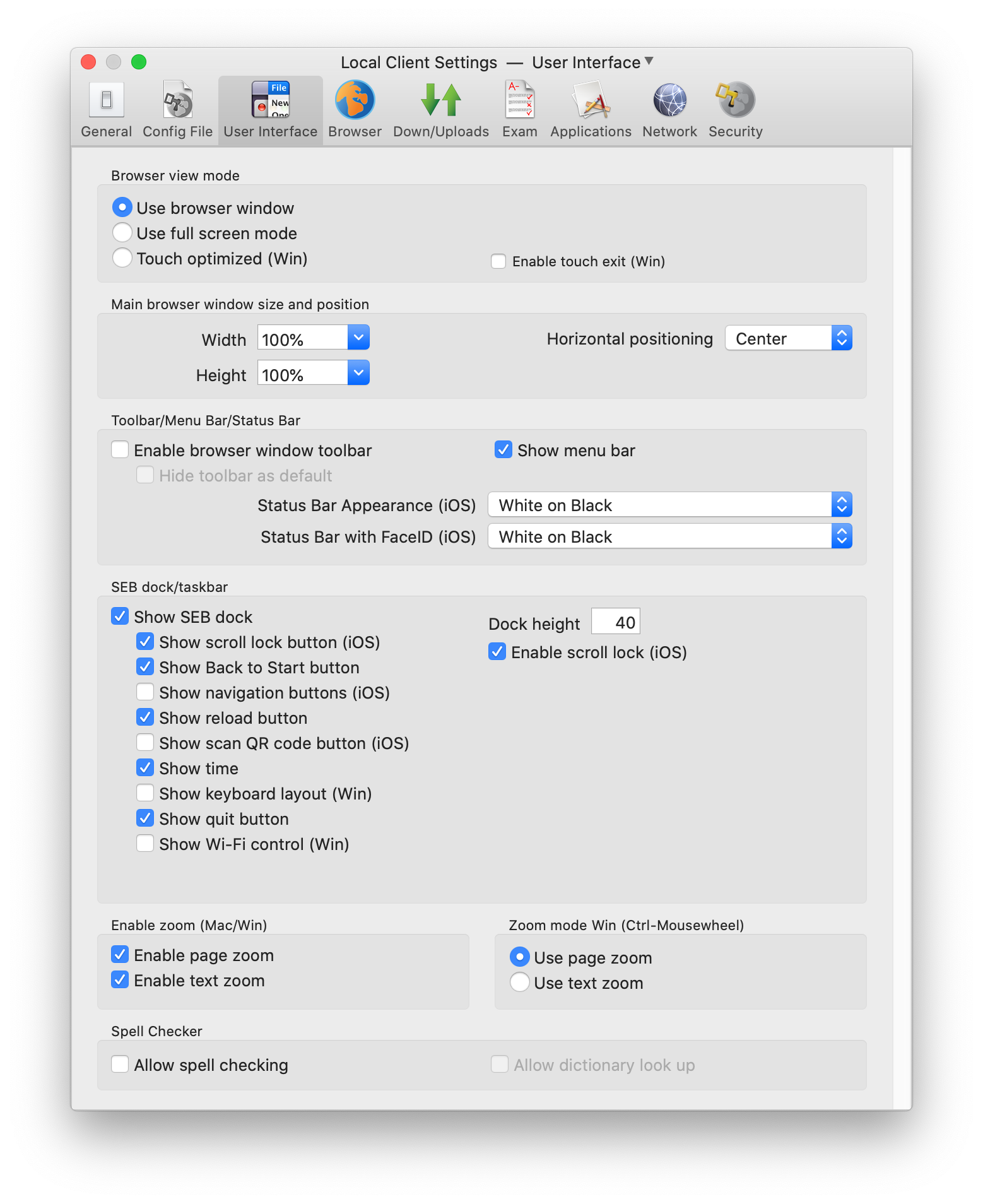
- Use browser window: Use a window for the SEB browser which can be scaled and moved around, also to another screen when available. One advantage of using a browser window is that if you're using a large wide screen display, some web pages may not be ergonomic to read. With the scalable browser window you can adjust the width of displayed web pages.
- Use full screen mode: Display the SEB browser full screen.
- Touch optimized (Win): Enables the touch optimized mode for Windows tablet computers (for Windows 8.1 and 10) featuring:
- Larger buttons in the SEB task bar
- Touch optimized message boxes (alerts, dialogs) with larger buttons
- The Winodws on-screen keyboard is displayed when the user touches a text field on a browser page or when SEB asks to enter a password.
- New web pages open in full screen 'windows', switch between open pages with the open windows chooser popup menu invoked by tapping the SEB icon in the SEB task bar. With the close button below each window in this window chooser you can close open browser full screen 'windows'.
- Enable touch exit (Win): When enabled, SEB can be quit in touch optimized mode with a swipe down from the upper display edge (helpful when the SEB task bar with the quit button is not used).
- Main browser window size: You can set the width and height of the main SEB browser window as absolute points (pixel) values or a percentage of the screen width or height. You can enter the dimensions (in points or percent values) in the text field or select one of the predefined values in the popdown menu.
- Main browser window horizontal positioning: You can choose how the window will be positioned horizontally if it doesn't fill the full screen width: Left, Center, Right.
- Enable browser window toolbar: Indicates if a toolbar is displayed on top of the browser window which can also be hidden (Mac only) by the user if it's disturbing. The toolbar contains the back/forward browsing buttons, page and text zoom buttons (if enabled) and the reload button. In SEB for macOS the toolbar isn't displayed on the main browser window if this is set to full screen mode.
- Hide toolbar as default (Mac): After SEB starts, the browser window toolbar is hidden. Users can unhide the toolbar in the view menu or the key combination cmd-alt-T.
- Show menu bar: Show the macOS menu bar to allow accessing settings like Wi-Fi and for changing keyboard layouts.
- Status Bar Appearance (iOS): Status Bar appearance on devices without FaceID.
- Status Bar with FaceID (iOS): Status Bar appearance on devices with FaceID. Please note that the background of display space outside of the actual webpage (on the sides) has the same color as the Status Bar background.
SEB dock/task bar
- Show SEB dock: The SEB dock is displaying an icon for the SEB browser with controls for its open browser windows and a quit button, plus additional optional buttons and information widgets (see below and in the Exam pane for the back to start button). Clicking the SEB icon in the dock and holding the left mouse button down or a secondary (right mouse button) click displays a popup menu with all open browser windows, the main browser window is at the bottom. With this menu you can switch between open browser windows.
- Dock height: SEB Dock height in points (pixel height x 2 on Retina HiDPI displays). In SEB for Windows display DPI settings are now also taken in account, in touch optimized mode task bar is scaled up in addition.
- Show scroll lock button (iOS): Shows the scroll lock button in the Dock if the scroll lock feature is enabled (iOS only).
- Enable scroll lock (iOS): With the scroll lock button and/or side menu item, web page scrolling, selecting text and the text magnifier can be disabled. This can facilitate using drag-and-drop and drawing question types. (iOS only)
- Show Back to Start button: Shows the Back to Start button, if this feature in configured in the Exam pane.
- Show navigation buttons (iOS): Shows navigation buttons (back/forward) in the SEB for iOS Dock. Otherwise these buttons are displayed in the browser toolbar (if enabled), or in the side menu.
- Show reload button: This button reloads the current web page. Shows warning if enabled in the Browser pane.
- Show scan QR code button (iOS): Shows Dock button which allows to start an exam or to reconfigure SEB by scanning a QR code with a SEB link. The button is only displayed if QR Code Config is enabled in Config File pane and if not running in exam mode.
- Show time: Displays current time in SEB task bar: This is for example helpful if you decide to ban personal watches in exams (because of smartwatches).
- Show keyboard layout (Win): Shows current keyboard layout and allows to switch to other keyboard layouts which have been enabled in Windows.
- Show quit button: Shows the Quit SEB/Session (iOS) Dock button.
- Show Wi-Fi control (Win): Allows to reconnect to Wi-Fi networks which have previously been connected to.
- Enable page zoom: Pages can be zoomed with Cmd +/- or the commands in the view menu and buttons in browser window toolbar (Mac) or with Ctrl-Mousewheel (Win).
- Enable text zoom: Text in browser windows can be zoomed with Ctrl - Cmd +/- or the commands in the view menu and buttons in browser window toolbar (Mac) or with Ctrl-Mousewheel (Win).
- Zoom Mode (Win): Zoom whole web pages or just text using Ctrl-Mousewheel (only in Windows version)
- Allow spell checking: Allow using check spelling/grammar and 'correct spelling automatically'
- Allow dictionary look up: Allow looking up text elements on a web site using the 3-finger tap on a trackpad or Ctrl-Cmd-D. Not possible with the AAC macOS kiosk mode.
Settings in the Browser Pane
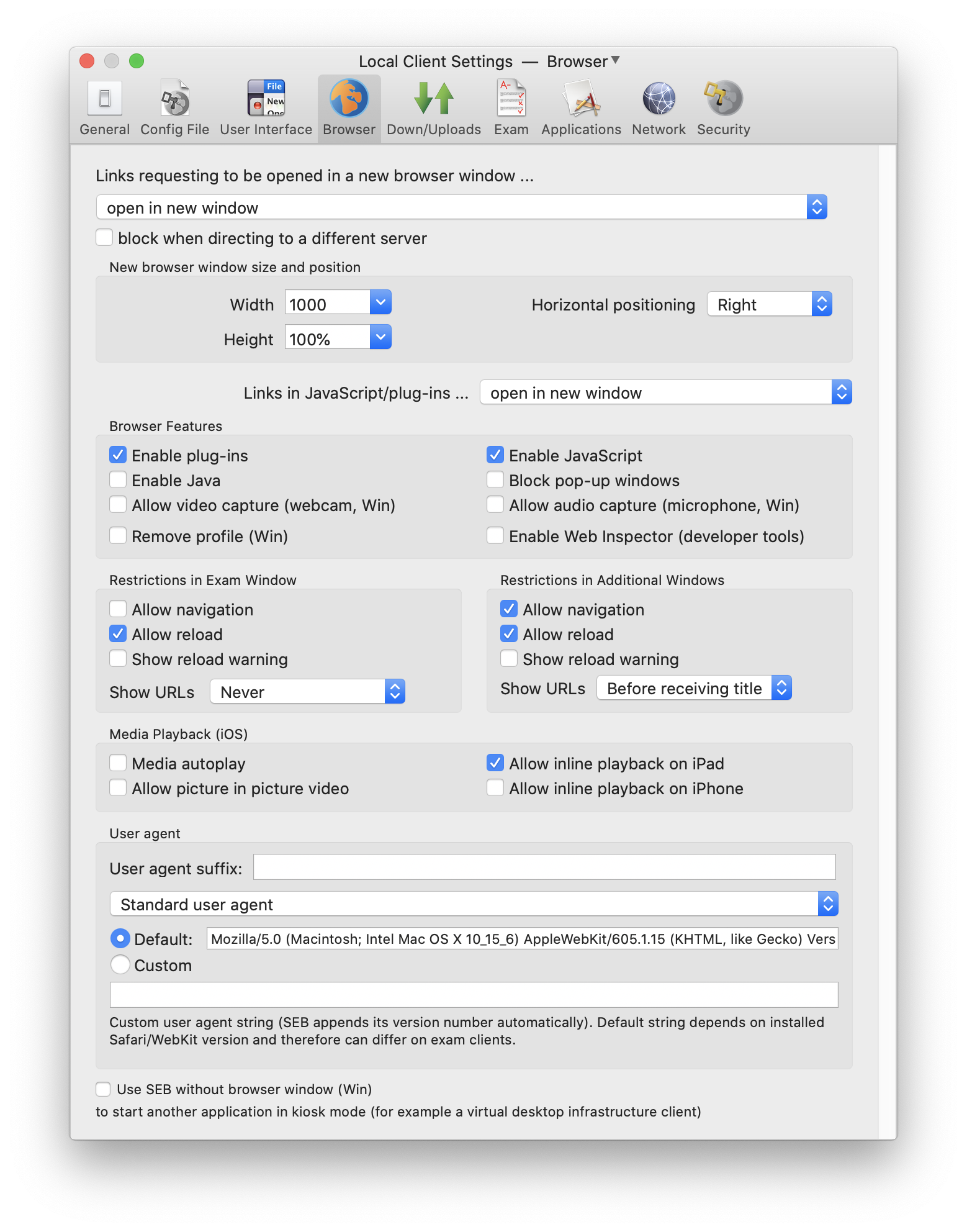
- Links requesting to be opened in a new browser window ... This popup list offers three policies:
- get generally blocked
- open in same window: This was the behavior in SEB for macOS versions before 1.5.
- open in new window
- Block when directing to a different server: Hyperlinks which direct to a different host than the one of the current page will be ignored.
- New browser window size: You can set width and height of new browser windows, use "Screen" if you want the window to fill the full width or height of the screen.
- New browser window size: You can set the width and height of new browser windows as absolute point values or a percentage of the screen width or height. You can enter the dimensions (in points or percent values) in the text field or select one of the predefined values in the popdown menu.
- New browser window horizontal positioning: You can choose how the window will be positioned horizontally if it doesn't fill the full screen width: Left, Center, Right.
- Links in JavaScript/plug-ins ... This popup list offers three policies for hyperlinks opened from JavaScript or plug-ins (like Flash):
- get generally blocked
- open in same window: This was the behavior in SEB for macOS versions before 1.5, but links got only opened, when they were not directing to a different server (see the checkbox below). USE WITH CARE: When 'open in same window' is selected, then some JavaScript/HTML5 features (like File API) might not work
- open in new window
Browser Features
- Enable plug-ins: Enables web plugins like Flash. For security reasons it's recommended to disable this option if you don't use any plugin content.
- Enable JavaScript: Please note that most modern websites need JavaScript for full functionality.
- Enable Java: Enables Java Applets. Starting SEB 2.0 this option is disabled by default because Java applets are considered a potential security risk.
- Block pop-up windows: Disables pop-up windows (often advertisement) opened by JavaScript without an user action such as a button click.
- Allow video capture (webcam, Win): Allow web applications to access camera (using HMTL 5 APIs).
- Allow audio capture (microphone, Win): Allow web applications to access microphone (using HMTL 5 APIs).
- Remove profile (Win): Removes the browser profile (containing caches and also local storage) when quitting SEB.
- Enable Web Inspector (developer tools): If enabled and right click isn't disabled (see Security/Hooked Keys/Enable Right Mouse), you can right click/ctrl-left click on a web page element and open Web Inspector with 'Inspect Element'. Win: Use browser window toolbar menu for developer tools.
Restrictions in Exam Window
- Allow navigation: Disabling browsing to previously visited pages (by Cmd+Cursor left) increases security, because it might be possible to leave an exam by browsing back to an external start page.
- Allow reload: You can disable reload completely (reload button in task bar, browser tool bar, iOS side slider menu, keyboard shortcut Cmd+R/F5 on Windows) with this setting, as offline caching in some e-assessment systems might break when the user tries to reload a page without internet connection.
- Show reload warning: SEB shows a warning asking the user to confirm reloading the main browser containing the exam.
- Show URLs: In some use cases it might be relevant for security of the exam to hide the URLs of visited exam pages from examinees. While testing on the other side, it can be helpful to show URLs in the left slider view, in the browser toolbar (if enabled) and in load error alerts.
Restrictions in Additional Windows
- Allow navigation: Disabling browsing to previously visited pages (by Cmd+Cursor left) might not be desired for additional resources and other content opening in additional browser windows, therefore this separate setting.
- Allow reload: For additional resources and other content opening in additional browser windows reload can be enabled/disabled separately with this setting.
- Show reload warning: You can disable/enable the reload warning for additional resources and other content opening in additional browser windows separately.
- Show URLs: In some use cases it might be relevant for security of the exam to hide the URLs of visited additional webpages from examinees. While testing on the other side, it can be helpful to show URLs in the left slider view, in the browser toolbar (if enabled) and in load error alerts.
Media Playback (iOS)
- Media autoplay: Some video/audio content will start playing without user interaction. Some other content might not be playable without enabling this setting (but will not auto play).
- Allow picture in picture video: On devices supporting PiP, the video plays in a movable and resizable overlay window. If not running SEB in Single App Mode, PiP video keeps playing even if switching to other apps.
- Allow inline playback on iPad: Video content can be played inline on a web page or only in full screen. By disabling this option, HTML5 video players are forced to use the iOS user interface for controlling playback.
- Allow inline playback on iPhone: On an iPhone display, it might be better to display video full screen.
User Agent Settings
- Suffix to be added to any user agent: Enter a string here which will be appended to any user agent string (independent from the other user agent settings below).
- Standard user agent: Choose browser agent settings for SEB running on various operating systems and device types
- Default: Default user agent string on this Mac (it depends on installed Safari/WebKit version and therefore can differ on exam clients!)
- Custom: Enter a custom user agent string (SEB appends its version number automatically)
- Win: User agent for desktop mode: Allows to switch between the default and a custom browser user agent string for SEB Windows running in desktop mode. SEB appends its version number automatically to the selected user agent string.
- Win: User agent for touch/tablet mode: Allows to switch between the default, an iPad-like and a custom browser user agent string for SEB Windows running in the touch optimized mode (on tablet computers). SEB appends its version number automatically to the selected user agent string.
- iPad: Use an iPad-like user agent string for the touch optimized/tablet mode, as many mobile optimized websites recognize this user agent, but not the Windows tablet touch user agent.
- Use SEB without browser window: If you intend to use another application for an exam and don't need to display any web content on the exam client, you can switch off the SEB browser with this option. Don't try to disable XULRunner in the Application -> Permitted Processes tab, that isn't necessary when using this option. This feature is not available in SEB 2.1.3.
Settings in the Down/Uploads Pane

- Allow downloading and uploading files: Usually to be used when switching to third party applications is enabled.
- Save downloaded files to: Choose the download directory with this popup menu.
- Open files after downloading: Downloaded files will be opened with the according application, which has to be set correctly in the system for each used file type!
- Download directory Windows: Enter a valid, Windows-specific formatted path to a directory which should be used to save downloaded files.
- Choose file to upload … SEB can let the user choose the file to upload manually (as usual) or automatically choose the same file which was downloaded before. There are three possible policies to choose the file to upload:
- manually with file requester
- by attempting to upload same file downloaded before: If the file is not found, a file requester is presented and the user can choose some other file manually.
- by only allowing to upload the same file downloaded before:
If the file is not found, an error message is presented. This setting might bring additional security, because only files which have been downloaded before (in the same browser session, means since SEB was started) can be uploaded. If several files have been downloaded, pressing the choose file (or similarly named) button in the browser window will first choose the file most recently downloaded, pressing the button several times will cycle through all the files downloaded in this session.
- Download and open PDF files instead of displaying them inline: PDF files will not be displayed by SEB but downloaded and opened (if Open files after downloading is active!) by the application set in Finder (usually Preview or Adobe Acrobat). This option is useful when you allow to switch to third party applications and want to use some PDF forms which have to be filled out by the examinees/users.
- Allow using Acrobat Reader PDF plugin (insecure): The Adobe Acrobat Reader browser plugin should only be used on secured managed Mac computers, as it allows to access the file system and cloud services.
- Download and open SEB config files: SEB config files are downloaded and opened regardless if downloading and opening other file types is allowed.
Settings in the Exam Pane
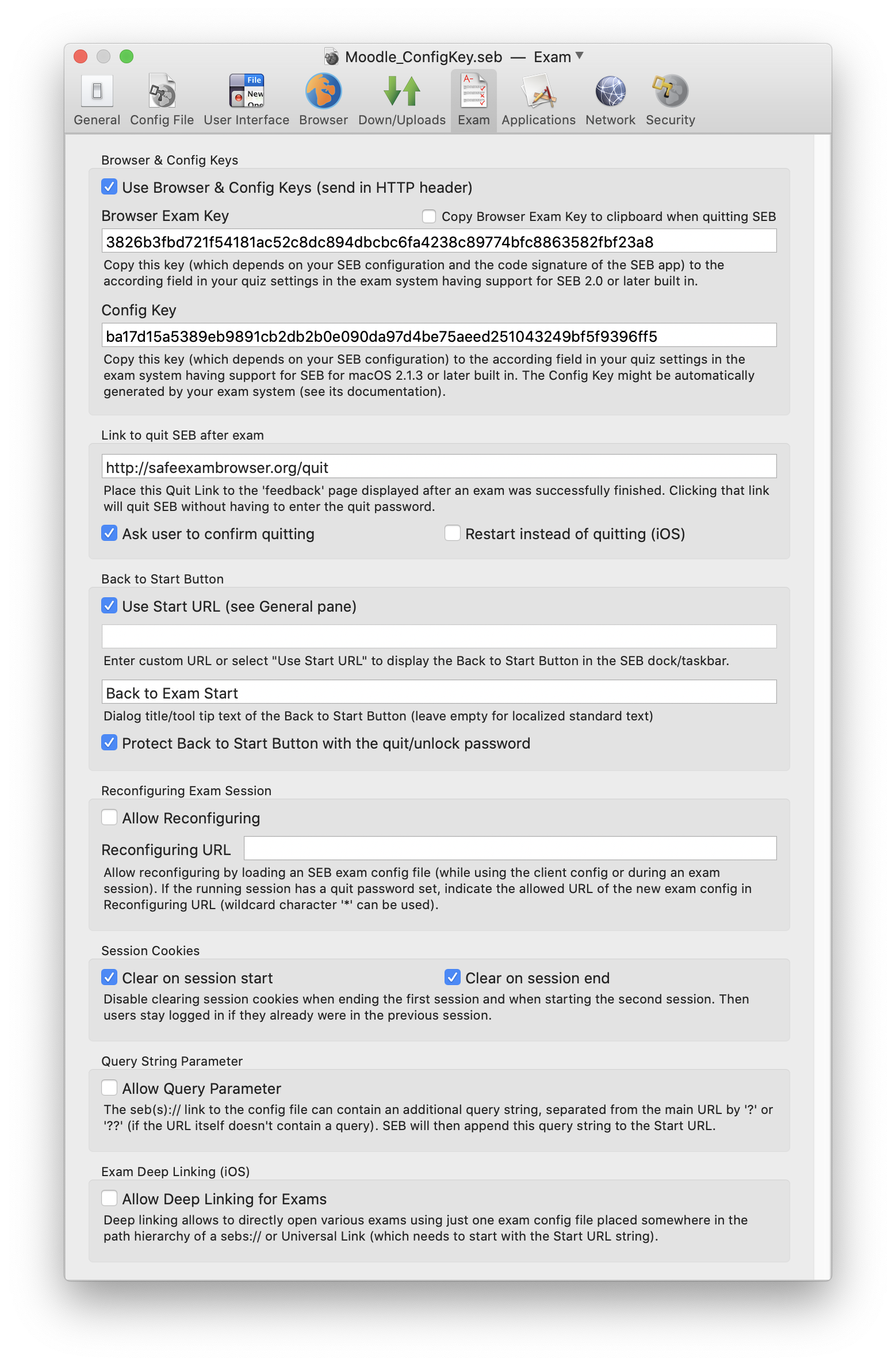
- Use Browser & Config Keys (send in HTTP header): Enables using the Browser Exam Key and the Config Key, they are send in an HTTP header to authenticate the SEB client and its settings to a compatible exam system.
- Browser Exam Key: Copy this key which depends on your SEB configuration and the SEB version/application signature) to the according field in your quiz settings in the exam system having support for SEB 2.0 or later built in. The Browser Exam Key is automatically re-calculated and displayed in the Exam preferences pane. This happens whenever a setting changes if editing local client settings and after saving a config file if editing settings for starting an exam.
Important: First save your final exam settings in a .seb settings file and then generate and copy the browser exam key to your exam system's quiz settings as the Browser Exam Key changes when you change any setting.
Please note that if you want to use the same .seb config file with Windows and Mac clients, you should not alter the file anymore when you're copying the Browser Exam Key hashes to your exam settings in your quiz module. Re-saving it will change the Browser Exam Key of that file also in the SEB version on the other platform. The keys for the Mac and the Windows version will in any case be different, so you have to load the final .seb file into both versions and copy both keys to your quiz settings. - Copy Browser Exam Key to clipboard when quitting SEB: SEB clears the clipboard when quitting, so you should either use SEB to copy the exam key to your quiz settings or this option to find the exam key in the clipboard after quitting SEB.
- Config Key: Copy this key (which depends on your SEB configuration) to the according field in your quiz settings in the exam system having support for this new hash value key built in. The Config Key might be automatically generated by your exam system. Different than the Browser Exam Key, the Config Key of existing settings doesn't change, when the SEB version is updated (even if this version introduces new setting options). The Config Key is also same in each platform version of SEB, so SEB for iOS and SEB for Windows will generate the same key as SEB for macOS. The Config Key changes when you alter and re-save a SEB config file. But still another version of SEB will calculate the same Config Key for this config file.
The most important advantage of the Config Key is, that it can be calculated in an exam system, if that system automatically generates SEB settings for an exam (server-side). So when LMS/exam systems support the Config Key, no manual copy-paste of key hash values is necessary for each config file and SEB version.
Link to quit SEB after exam
- Link to quit SEB after exam: Its possible to configure SEB to quit after the exam is submitted without having to enter a quit password by specifying a quit link (full URL starting with http:// or https://) and placing this on the summary page displayed by the LMS after submitting the exam (or just using the URL of the summary page as quit URL). If a Quit Link is entered, it works regardless of other quit settings in the General pane (Allow user to quit SEB and the Quit password is ignored when a quit link is clicked).
- Ask user to confirm quitting: If not selected, then SEB is quit immediately after a Quit Link is detected, without users having to confirm.
- Restart instead of quitting (iOS): Exam session in SEB is restarted, after the quit URL has been detected, instead of quitting SEB.
Back to Start Button
- Back to Start button: Either check the "Use Start URL" option or enter a link to which the exam is redirected when the Back to Start button is pressed. The browser session is not restarted using this feature (session cookies are not cleared; a logged in user isn't logged out). The Back to Start button is displayed in the SEB dock/task bar when either the "Use Start URL" option is selected or a link is entered.
- Title/tool tip text for the Back to Start button: This text is displayed as the title of the confirmation alert and as tool tip on the icon. Leave empty for a standard text (which is localized to the SEB user interface languages).
- Protect Back to Start button with the quit/restart password: The quit/restart password (if set, see General pane) must be entered when the Back to Start button was tapped. Exam support/invigilators should be told this password to be able to return to the start of the exam if there is a problem.
Reconfiguring Secure/Exam Session
Allow reconfiguring by loading an SEB config file (while using the client config or during an exam session). If the running session is secure (has a quit password set), indicate the allowed URL of the new exam config in Reconfiguring URL (wildcard character '*' can be used).
- Allow reconfiguring secure/exam session: Allow reconfiguring a secure session (= quit password set) while using a client config or during any exam session (secure or not secure) by loading an SEB exam config file.
- Reconfiguring URL: The URL of the seb(s) link which invokes reconfiguring has to be matched by this string when reconfiguring a secure session.
Session Cookies
Disable clearing session cookies when ending the first session and when starting the second session. Then users stay logged in if they already were in the previous session.
- Clear on session start: Session cookies should be cleared when starting the current exam session (when reconfiguring SEB).
- Clear on session end: Session cookies should be cleared when ending the current exam session (when reconfiguring SEB).
Query String Parameter
The seb(s):// link to the config file can contain an additional query string, separated from the main URL by '?' or '??' (if the URL itself doesn't contain a query). SEB will then append this query string to the Start URL. This feature can for example be used to pass an individual login token to an exam system when SEB is started by opening an seb(s) link in another browser, without having to generate an individual config file for each user.
- Allow Query Parameter: If a seb(s):// link contains an additional query string, SEB appends it to the exam's Start URL.
Exam Deep Linking (iOS)
Deep linking allows to directly open various exams using just one exam config file placed somewhere in the path hierarchy of a sebs:// or Universal Link (those links need to start with the URL used in Start URL).
- Allow Deep Linking for Exams: If using a Universal Link or an indirect seb(s):// link, SEB will search its path hierarchy for specifically named config files, when this setting is enabled and the seb(s) link doesn't directly point to an SEB config file. Those config files must either be named SEBSettings.seb (which can contain either a client or exam config) or SEBExamSettings.seb (SEB searches for this only if SEBSettings.seb was found and contained a client config). By using both SEBSettings.seb containing a client config and SEBExamSettings.seb containing an exam config, you can start an exam and at the same time reconfigure SEB's client settings with with only one Universal Link or sebs deep link.
Settings in the Applications Pane
Setting Attempt to quit prohibited applications: See Prohibited Processes Section.
Permitted Processes Section
Third party applications and processes which are permitted to run during an exam. Permitted applications show up in the application chooser, they can be used during an exam in addition to the SEB browser.
Using permitted processes is not supported in SEB for macOS. You can define and edit permitted processes for SEB for Windows here.
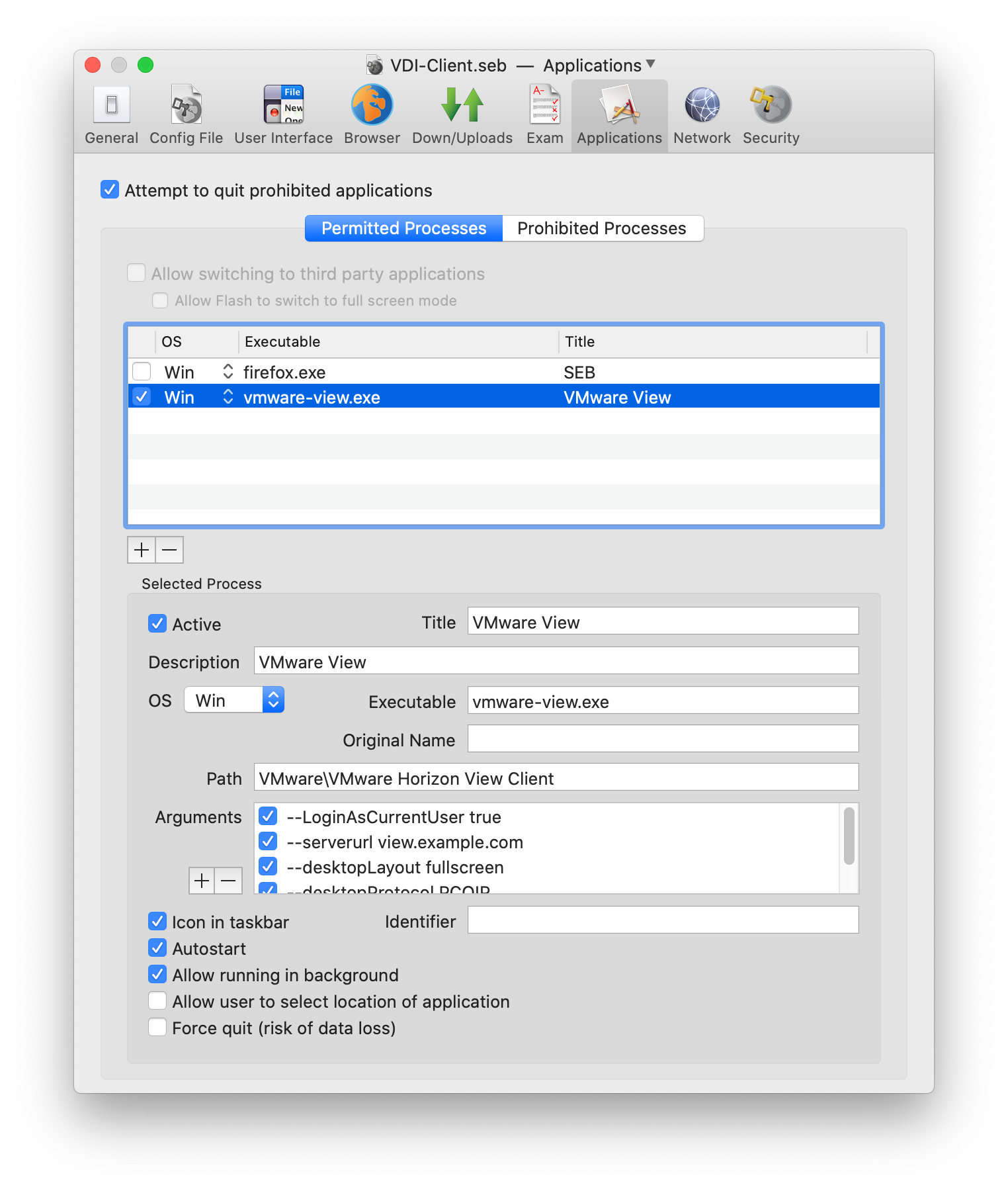
- Allow switching to third party applications: If this option is activated, the kiosk mode induced by SEB will be reduced one level. The process switcher (Cmd-Tab) will work, so it's possible to switch to other running applications.
Use this option only when running SEB in a managed user account, with only SEB and the desired applications allowed. This will currently only be usable on managed Macs, not in BYOD environments (see Secure Environment).
- Allow Flash to switch to full screen mode: Playing videos with Flash in full screen mode is a security problem. That's why it is strongly recommended to use HTML5 video (there full screen mode is no problem) instead of Flash whenever possible. Depending on the Flash video player and the Mac used, it can be difficult to switch back from full screen mode (best is to use the Esc key), so if you don't need full screen mode, don't enable it here.
When switching to third party applications is disabled, Flash fullscreen mode isn't possible at all.
Selected Process Details:
- Active: Indicates if this permitted process item is active (can be used while testing).
- Title: Application title which is displayed in the application chooser.
- Description: Optional, should explain what kind of process this is, because this might not be obvious only from the executable's name.
- OS: Indicates on which operating system the permitted process runs (currently only the option Win works).
- Executable: File name of the executable, which should not contain any parts of a file system path, only the filename of the exe file (like calc.exe).
- Original Name: Original file name of the executable (Win). Some files don't have this metadata information. If it is available, SEB will prioritize this string over the Executable file name string.
- Path: Optional filesystem path (formatted system specific) to the process executable's directory excluding the filename, see field executable. If the path is not given or relative, then SEB searches the system provided paths for applications. For applications which have been installed and properly registered in Windows App Paths you don't need to specify the path.
- Arguments to append to the executable of the application when starting it. You can select if an argument is active or not (for testing). You can add and remove arguments using the +/- buttons.
- Icon in task bar: Mainly useful for background processes (not requiring user interaction) which you want to autostart when SEB is run.
- Autostart: Start the process automatically together with SEB.
- Identifier: String of the process identifier in reverse domain notation (Mac) or the string or substring of the main window title of a process which doesn't have a MainWindow handle (Win), this is usually the case with Java applications (use for example "OpenOffice" for OpenOffice Calc).
- Allow running in background: Permitted processes with this option set are allowed to already be running when starting SEB. In this case SEB doesn't ask the user if the process can be terminated before continuing to start SEB. Processes with the option "Allow running in background" don't have an icon in the SEB task bar. They can nevertheless have the option "Autostart" set, in this case SEB attempts to start the permitted process regardless if it was already running or not (and the option "Icon in task bar" is considered in this case).
If you need some background process running together with SEB and this process might display some window or alert/message box, you have to add this process's executable to permitted processes with the option "Allow running in background" set, otherwise SEB will hide the window of the background process when "Monitor processes" is selected (or even terminate that process, in case it cannot be hidden). - Allow user to select location of application: The user is presented a file dialog window allowing to locate the third party application's executable if it cannot be found at the path specified and paths provided by the system (instead of just displaying an error message). Only applications matching the executable string specified are accepted.
- Force quit: Indicates whether an application/process may be terminated in a not-nice way, what may cause data loss if the application had unsaved data in memory or was just writing to a persistent memory/drive. If this application is safe to be terminated anytime, then enabling this setting helps to avoid bothering users: Because if this setting is disabled and the application is running when SEB is started, then an alert/dialogue window is displayed to ask the user to quit this permitted application together with other permitted and the prohibited applications and to restart SEB afterwards (or to let SEB terminate the applications risking that there could be data loss).
Disabling this setting does not mean that processes are not killed: Depending on the platform's capabilities, SEB first tries to terminate prohibited processes and applications nicely or asking the user to do it themselves, if this doesn't work then it terminates them anyways (as long as monitor processes is enabled). But enabling Force quit will speed up this process.
This flag should not be set for macOS applications which allow to be terminated nicely (they are anyways automatically terminated, without asking the user).
Java applications (like OpenOffice) can be used as permitted processes, but require specific settings: The title of their main window must be defined in the field Permitted Processes -> Identifier (for example "OpenOffice Calc"), the required main executable in Permitted Processes -> Executable ("scalc.exe") and the process which is actually handling the main window in Permitted Processes -> Window Handling Process(es) ("soffice.bin"). For this example the executable path should be entered as "program" in Permitted Processes -> Path, as that is the relative path to the main executable from the OpenOffice main directory, which is registered in Windows App Paths.
Prohibited Processes Section
List of processes which are prohibited to run during an exam. With prohibited processes you can prevent some specific background processes and applications from running together with SEB. Since SEB 2.2.1 for macOS, this list contains preset prohibited processes, which are required to be quit before starting an exam and are automatically added to any config you open with SEB. You cannot remove those preset prohibited processes, but you can deactivate them individually using their "Active" parameter. You can change other properties of the prohibited process, although not all of these parameters are used by SEB for macOS, currently only "Active", "Executable", "Identifier", "OS", "Force quit" and "Description" are used. You can't change "Executable" or "Identifier", if you do so, a new prohibited process entry is created internally (and visible next time you open those settings).
There are two kinds of processes:
- Applications with a Bundle Identifier, which follows the reverse domain notation (for example org.safeexambrowser.Safe-Exam-Browser). SEB uses the Identifier parameter to detect those Application processes.
- BSD processes don't have a Bundle Identifier, they are only detected using the Executable property (process name).
If you want to add prohibited processes to your settings, you can use the Activity Monitor macOS app: Select a process, press the info button (or cmd-I) and press the "Sample" button. In the sample output, you can identify the process name (SEB property "Executable", which can differ from the localized application name displayed by macOS in the Finder, Dock and Activity Monitor process name list. If the sample shows an "Identifier" in reverse domain notation (and not the identical string as the "Process" entry), then this process is an application with a Bundle Identifier and you should enter this bundle ID as "Identifier" in SEB's settings if you create a prohibited process. If "Identifier" from the sample output isn't in reverse domain notation, don't enter anything in the "Identifier" field in SEB's prohibited process settings, only enter the process name in "Executable".
Only enable the "Force quit" parameter for prohibited processes in SEB if you are sure that student's won't loose unsaved documents if the process is terminated without a warning when starting SEB. Usually "Force quit" should not be used with applications: When "Force quit" is disabled, SEB will send a regular quit command to the application. Most applications (which follow Apple guidelines) will then either auto-save unsaved changes in open documents or ask the user if the document should be saved before quitting.
- Attempt to quit prohibited applications: By default (unless this setting is disabled), SEB tries to quit all running prohibited applications in a "nice" way, still allowing them to save changes to open documents. If you disable this setting, then the user has to manually click the button "Quit All Applications" in the window with the list of running prohibited processes displayed when SEB is starting. If quitting applications "nicely" fails, SEB offers the option to force quit all still running prohibited applications with the button "Force Quit All Processes". BSD processes cannot be "nicely" quit, users either have to manually terminate or disable them or use the "Force Quit All Processes" button in the window with the list of running prohibited processes. Please note that macOS restarts some background (daemon) processes automatically if they are force terminated. Those processes might have to be uninstalled (or temporarily deactivated using the command line (Terminal), as explained in this external article).
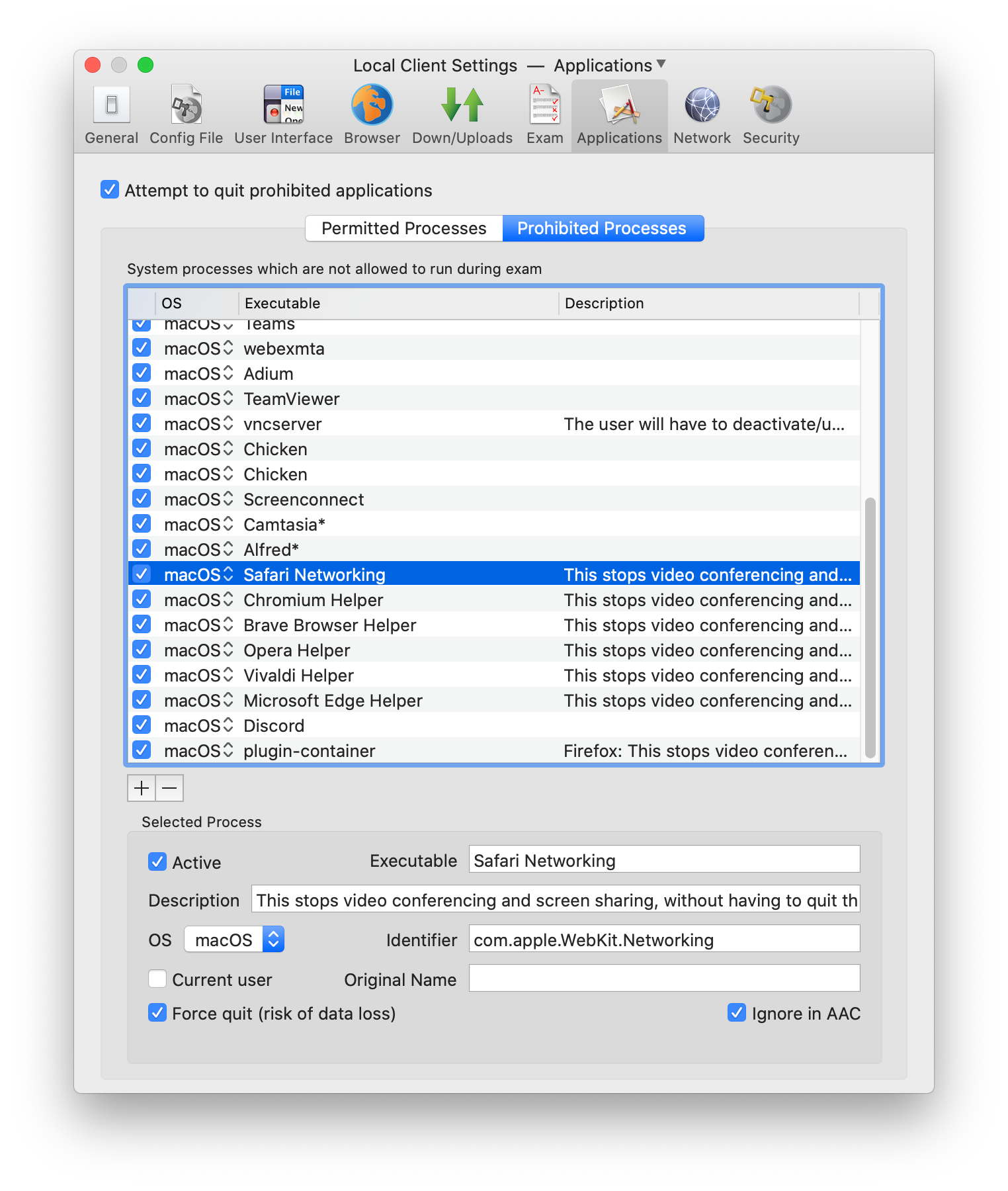
Selected Process Details:
- Active: Indicates if this prohibited process item is active.
- Executable: Process name, usually the filename of the executable.
- Description: Optional, should explain what kind of process this is, because this might not be obvious only from the executable's name.
- OS: Indicates on which operating system SEB should watch for the prohibited process (currently only Win works).
- Identifier: Bundle Identifier string of the process in reverse domain notation (Mac) or the string or substring of the main window title of a process which doesn't have a MainWindow handle (Win), this is usually the case with Java applications (use for example 'OpenOffice' for OpenOffice Calc).
- Current user
Boolean indicating that the prohibited process has to run under the currently logged in user. Use it instead of indicating the user identifier (user field). Not used in current SEB versions. - Original Name: Original file name of the executable (Win). Some files don't have this metadata information. If it is available, SEB will prioritize this string over the Executable file name string.
- Force quit: Indicates whether an application/process may be terminated in a not-nice way, what may cause data loss if the application had unsaved data in memory or was just writing to a persistent memory/drive. If this application is safe to be terminated anytime, then enabling this setting helps to avoid bothering users: Because if this setting is disabled and the application is running when SEB is started, then an alert/dialogue window is displayed to ask the user to quit this prohibited application together with permitted applications and to restart SEB afterwards (or to let SEB terminate the applications risking that there could be data loss).
Disabling this setting does not mean that processes are not killed: Depending on the platform's capabilities, SEB first tries to terminate prohibited processes nicely or asking the user to do it themselves, if this doesn't work then it terminates them anyways (as long as monitor processes is enabled). But enabling Force quit will speed up this process.
This flag should not be set for macOS applications which allow to be terminated nicely (they are anyways automatically terminated, without asking the user). - Ignore in AAC: When using the AAC (Automatic Assessment Configuration or simpler Assessment Mode) kiosk mode which prevents network and screen access for other processes, ignore this prohibited process, when running on macOS Catalina 10.15.4 or newer. When this macOS built-in single app mode is used, terminating most processes is unnecessary.
Settings in the Network Pane
Filter Section

- Activate URL filtering: Filter URLs when loading web pages using the filter set defined below.
- Filter also embedded content: If selected, also all embedded resources will be filtered using the filter set. Note that there can be hundreds of resources such as images and other media per page, so filtering all content may slow down page loading.
- Display 'URL Blocked!' / Display '✕': When the user clicks a blocked link, SEB displays shortly one of these messages in the upper right corner of the screen.
- Teach SEB allowed/blocked URLs: Enable this setting together with URL filtering (either with the setting Activate URL filtering alone or together with Filter also embedded content) and close the Preferences window by applying changed settings. SEB will then display a dialog window whenever it detects the browser wanting to access a link or an embedded resource which isn't yet covered by an existing URL filter rule. In that window you can select if this URL or just parts of it should be allowed or blocked by the URL filter. The filter rule expression you select or customize there will be added to the list of URL filter rules. After again opening the Preferences window, you can save the SEB config with these newly created rules. Please note that in the usual case you would allow the URLs of particular links or embedded resources, and all other URLs would be blocked. That's why if you don't want to allow some URLs which are displayed in the URL filter dialog window, use the 'Ignore' button. For such URLs, SEB doesn't create a 'Block' filter rule, but the URL is added to an internal 'ignore list' (so URLs covered by this 'Ignore' rule don't show the URL filter dialog window again). You should only add explicit 'Block' rules, if you for example intend to allow a specific domain, but block some pages, directories or file types in that domain.
- Clear Ignore List: The ignore list mentioned above can be cleared after you created all necessary filter rules, as this list is only used for the Teach SEB allowed/blocked URLs feature and not for URL filtering itself.
The table contains URL filter rules, consisting of an allow or block action. The URL filter always first processes rules with the block action, if one matches, then the according http request is discarded. If no block rule matched, then rules with an allow action are processed. If one matches, then the request is loaded. If no allow rule matched, then the request is discarded.
Discarding a http request means that a link with the URL is not followed and the user is notified with an alert. When content filtering is enabled, an embedded resource with the according URL is not loaded, in this case there's no notification about that, but it is written to the log (log level Warning on Mac). Create a new rule by clicking the'+' button below the table. Remove a rule by selecting it in the table and clicking the '-' button.
SEB automatically creates an allow filter rule for the exact address of the Start URL defined in these settings. This means that if your Start URL is example.com, then all pages and resources in the domain example.com will be allowed. If your Start URL is example.com/exams/engineering2015-1.html, then only the pages with this exact address will be allowed. In this case you have to manually add an allow filter rule so all pages and resources your exam uses will be allowed (like example.com/exams/*).
Rules
- Active: Indicates if the rule is active.
- Regex:
Indicates if the rule is a regular expression. Note: When using content filtering (setting Filter also embedded content), only the subset supported by WKWebView/Safari Content Filters is allowed, see here.
If Regex is not checked, then the rule can be formatted using the wildcard '*', which stands for an arbitrary string of any length. - Action to process if the corresponding expression matches. Possible actions:
- block
If the URL matches the expression, then it is rejected and processing of the remaining rules is stopped. - allow
If the URL matches the expression, then it is accepted and processing of the remaining rules is stopped.
If the URL filter reaches the last rule (means there was no matching block or allow expression found), then the URL is discarded. If you want the URL to be accepted if no matching block (or allow) expression was found, then add an 'allow *' expression. - block
- Expression:
A Text field which contains the filtering expression or pattern, either in a regular expression (Regex) format or a simpler filter expression containing the wildcard char '*'. A filter expression can filter against all elements of a URL/URI according to RFC 3986:
scheme://user:password@host:port/path?query#fragment
Format for a filter expression in the non-regex format:
- Scheme is optional, and must be followed by '://'.
- The host field is required (besides when filtering against a protocol like about:blank or data:), and is either a partial or full hostname or an IP address. It can also contain or be replaced completely with the wildcard '*' char, see below for details. The URL filter doesn't resolve hostnames itself, so if you allow everything and only block 'hostname.com', then that host could still be reached using its IP address. You should therefore mainly use whitelisting to allow accessing only specific sites during an exam.
- An optional '.' (dot) can prefix the host field to disable subdomain matching, see below for details.
- An optional port can come after the host and always has to start with the character ':'. It must be a valid port value from 1 to 65535.
- An optional path can come after the host or after the port and always has to start with the character '/'. Parts of the path can be replaced with the wildcard char '*'. If a path ends with a '/', that trailing '/' is removed (as the filter doesn't distinguish paths with or without trailing '/').
- URL parameters like a query string can be indicated and always have to start with the character '?'. Parts of the query can be replaced with the wildcard char '*'. If "?." is specified as query, then SEB enforces no query.
- Filtering against a fragment usually doesn't make sense, as the content can be reached by scrolling the loaded page. Allowing specific fragments could force people to use a link to a particular anchor on a page (other links would not work).
Examples for filter expressions: - 'example.com' matches 'example.com', 'www.example.com' and 'www.mail.example.com' (internally processed as a host name search for 'example.com' and a search for '*.example.com')
- '.www.example.com' matches exactly '*://www.example.com' (no other subdomains)
- 'mail.*' matches all hosts having a subdomain or domain 'mail', like 'mail.ethz.ch', 'www.mail.gov.to', 'mail.com'
- '*:8088' matches all requests to port 8088
- 'example.com/stuff/*' matches all requests to any subdomain of 'example.com' that have 'stuff' as the first segment of the path
- 'example.com/images/*.png' matches all requests to any subdomain of 'example.com' that have '/images/' as the first segment of the path and '.png' as the path extension of an file URL (means it matches all PNG images in the '/images/' directory or its subdirectories)
- '*.net' matches all host with any kind of subdomains in the .net top level domain like 'example.net', 'www.example.net', 'www.mail.example.net'
- '*/*.net' matches all files with a '.net' file extension on any host
You should consider using a regular expression if performing complex filtering (when a simple filter doesn't cover all possible cases how that complex URL could be formatted) or split the expression into several filter rules. The order of filter rules is not relevant.
- Scheme is optional, and must be followed by '://'.
Certificates Section
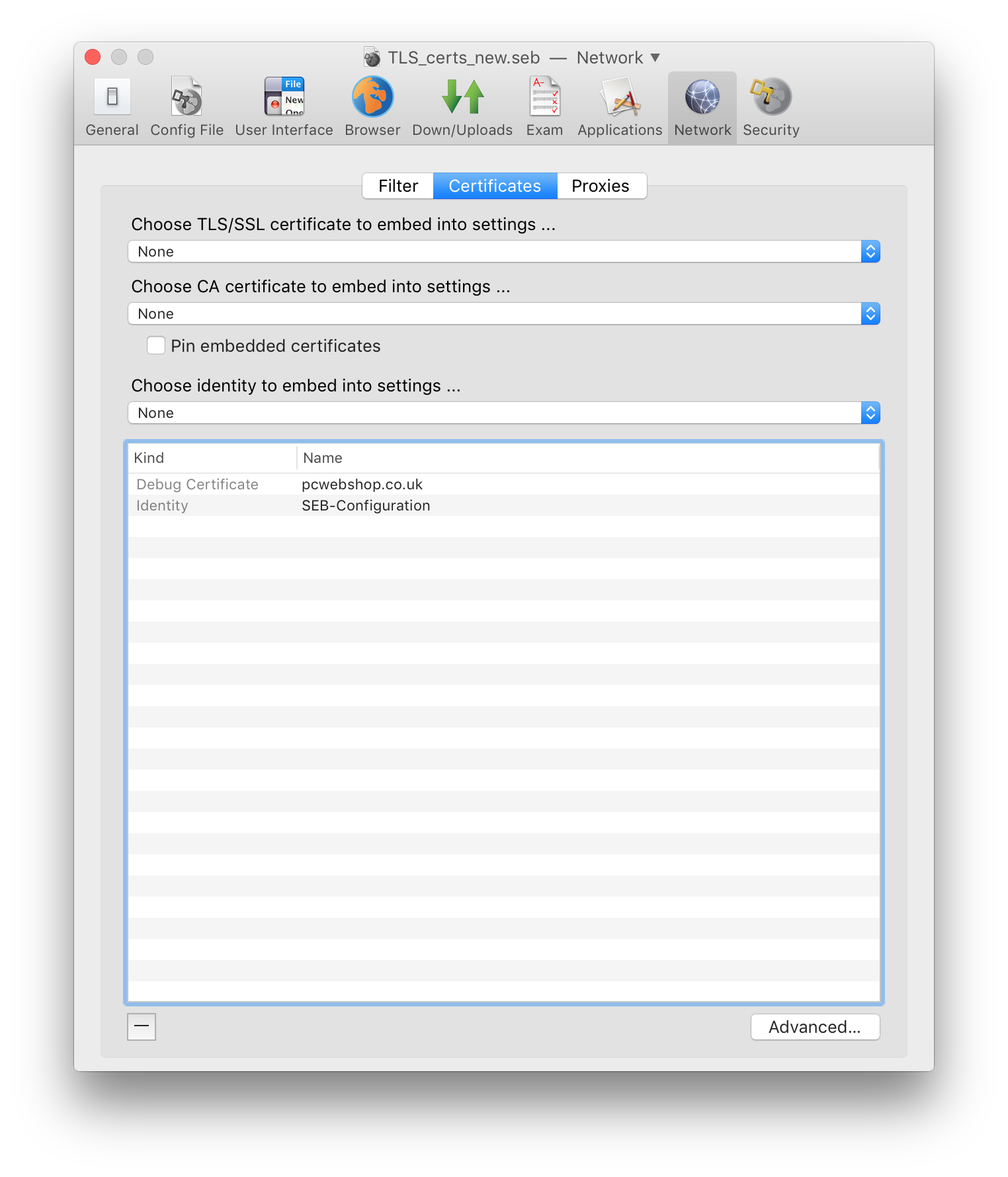
- Choose TLS/SSL certificate to embed into settings: Lists valid TLS/SSL certificates from the macOS keychain (if a TLS/SSL certificate isn't listed here, use the "Advanced…" option below). Selected certificates will be included into a .seb settings file when it is saved and used on the SEB clients which are started up with that .seb exam configuration. Users then won't be presented a warning when connecting to https servers with self-signed certificates and you don't need to distribute TLS/SSL certificates manually to the exam client computers.
- Choose CA certificate to embed into settings: Lists valid certificate authority certificates from the macOS keychain (if a CA certificate isn't listed here, use the "Advanced…" option below). Selected certificates will be included into a .seb settings file when it is saved and used on the SEB clients which are started up with that .seb exam configuration. Users then won't be presented a warning when connecting to https servers with certificates which rely on a certificate authority which isn't included in the system's root certificate store. You don't need to distribute CA certificates manually to the exam client computers when embedding them into a SEB config file.
- Pin embedded certificates: If this option is selected, the certificate store of macOS isn't used to evaluate the validity of a server certificate when SEB connects to a secure server using https. You have to embed TLS or CA certificates into SEB settings which establish trust for the secure servers you want SEB to connect to. The used certificates must be valid (not expired, containing the server's host address in "common name" or "alternative names"). If you want to use a certificate which fails validation (for the mentioned reasons), use a "Debug Certificate" which you can add in the "Advanced" window, where you can override "common name" and "alternative names" by changing the displayed name of the certificate into the server's host address (you can also specify a non-default port number).
If "Pin embedded certificates" isn't selected and you embed TLS, Debug and/or CA certificates, these
certificates extend the system trust store (as if you had manually added them to the system trust store)
- SEB only supports embedding TLS/SSL and CA certificates and using certificate pinning if running on macOS 10.9 or later versions. If you want to make sure that embedded certificates and certificate pinning work on all exam clients, then you should enforce the minimum macOS version 10.9 in the Security pane.
- You can also choose cryptographic identities from the keychain which are suitable for decrypting .seb files on SEB exam clients (X.509 certificates with RSA public key and associated private key). Those will also be added to the .seb settings file. Use this feature for creating a .seb file for configuring a client and add the identity or identities you like to use for encrypting SEB config files for starting exams later. Thanks to this feature you won't need to export the identities in Keychain Access and install it on your SEB clients manually.
Proxies Section
In this pane you can configure proxy settings for the exam client computers which override the system's proxy settings on the clients. Using those SEB proxy settings is not available in SEB 2.1.3 for macOS, you have to set proxy settings in System Preferences / Network on each client computer. SEB 2.1 and newer for Windows supports individual proxy settings which you can configure here.

Settings in the Security Pane
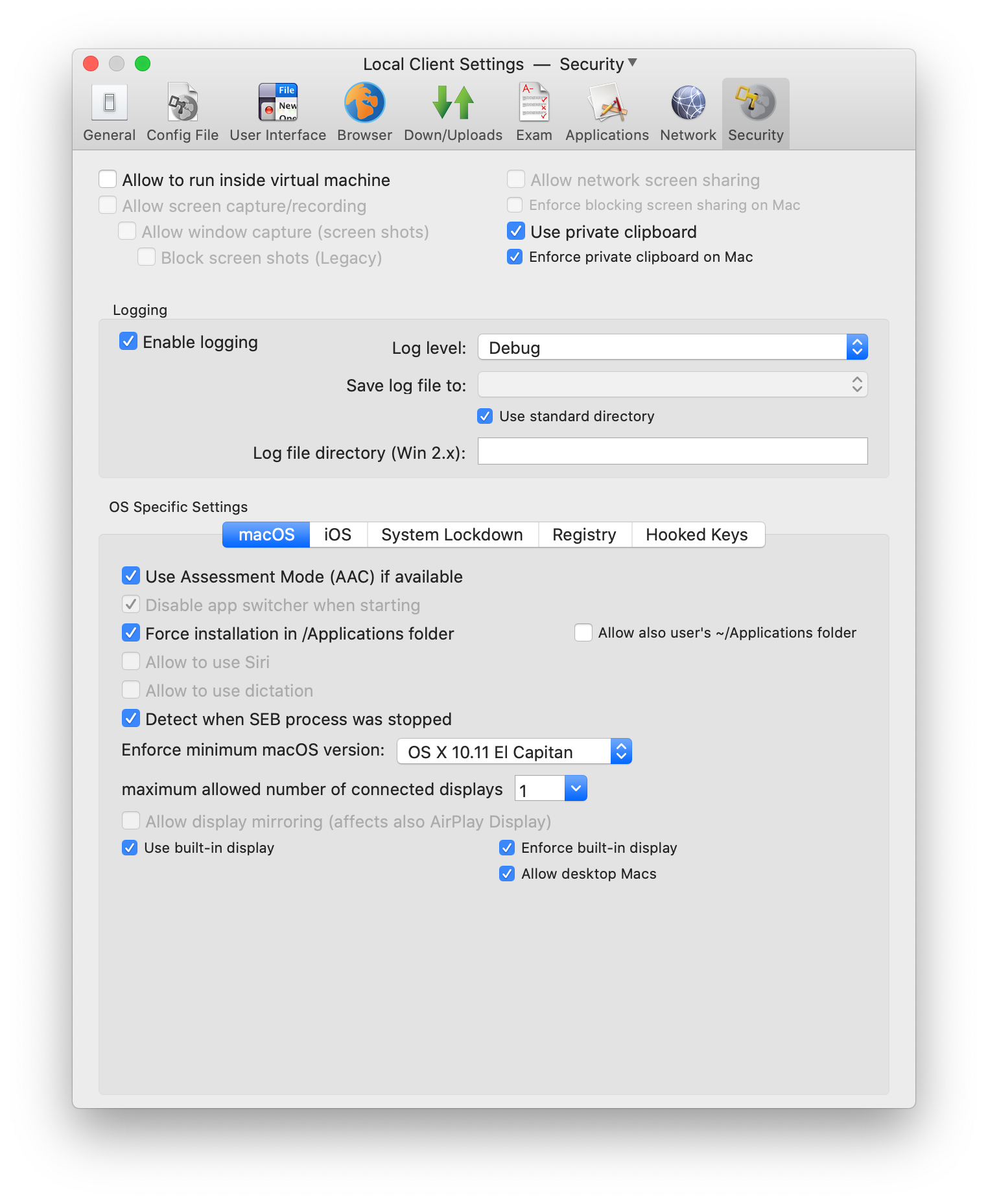
- Allow SEB to run inside virtual machine: Indicates if SEB is allowed to run in a virtual machine (e.g. for exams in virtual desktop environments) or not (in order to prevent potential manipulations).
- Allow screen capture/recording: Allows macOS screen capture (screen shots) and recording (cmd-shift-3/-4/-5) to be used. If users have the DropBox client installed and activated to upload screen shots directly to their DropBox, then this will also be stopped when screen capture is disabled.
- Allow window capture (screen shots): Shows or hides SEB windows on macOS screen shots (invoked with cmd-shift-3/-4/-5).
- Block screen shots (Legacy): Use legacy method to block macOS screen shots (invoked with cmd+shift+3/+4/+5). Disable together with enabling settings 'Allow screen capture/recording' and 'Allow window capture (screen shots)' will allow to take screen shots on Mac. Use 'Enable Print Screen' in Hooked Keys tab to allow screen shots to be taken in SEB for Windows.
- Allow network screen sharing: Allows macOS screen sharing (VNC based) to be used. If this option isn't enabled, SEB shows an alert and refuses to start up. If screen sharing is detected while SEB is running, a red lock screen is displayed and SEB can only be unlocked after the screen sharing session has been stopped and then the restart/quit password is entered (therefore exam supervision/support should know this password!).
To avoid that SEB locks itself during an exam when it detects that screen sharing started, it's best to switch off 'Screen Sharing' and 'Remote Management' in System Preferences/Sharing. The macOS features 'Back to My Mac' (iCloud settings in older macOS versions) and 'Share Screen' using the Message app can also trigger the alert/lock screen.
Please note that internet bots can cause the screen sharing lock screen to be triggered. In insufficiently protected networks those bots try to connect to the ports used for VNC and to log in using trivial passwords. If this happens, you can ask your network security experts to block access to VNC ports. - Enforce blocking screen sharing on Mac: Overrides the original screen sharing setting on Mac clients.
- Use private clipboard: Prevents utilities running in the background and Universal Clipboard (on macOS 10.12 Sierra) to be used to copy-paste contents into or out of exams. Private clipboard should always be used besides when working with third party applications in a managed user account.
- Enforce private clipboard on Mac: If enabled, overrides the old setting 'Use private clipboard" and enforces the private clipboard, so contents can only be copy-pasted inside SEB browser windows.
- Enable logging: The log can help in debugging SEB (if you send it to the developers) and to find out about possible manipulations. You can save the log to a network drive mounted on all exam client computers, since the log's name is unique and contains the machine's name and IP address.
- Log level: The log level indicates which information gets saved. Error includes fatal application and browser level errors, Warning are non-fatal but non-expected or security affecting events. Info includes most user actions including all browser navigation actions like addresses of opened web pages. Debug is reserved for information which is only necessary for in-deep program code debugging. The log will contain the selected log level plus all levels with a lower value, a log with the Verbose level contains events of all levels.. Default is Warning (error and warning messages). Debug and Verbose are meant for debugging (send such a log file to the SEB developers to find out details about a problem).
Note: If using Debug or Verbose log levels and having the Console system app open, you can experience delays when starting SEB. - Save log file to: Choose the directory where to save the log to. You could also save the log to a network drive mounted on the exam client computer. Please note that the first part of the log (starting with the line " ---------- STARTING UP SEB - INITIALIZE SETTINGS -------------" is always saved to a file in the standard directory ~/Library/Logs/Safe Exam Browser/. Only after the (client or exam session) configuration is initialized, SEB can save the log for the running session to a custom location definied by this setting (this part of the log starts with the line "---------- INITIALIZING SEB - STARTING SESSION -------------").
- Use standard directory: The log is saved to the directory ~/Library/Logs/Safe Exam Browser/ which is also displayed in the Console app log list.
- Log file directory Windows: Enter a valid, Windows-specific formatted path.
OS Specific Settings: macOS
- Use Assessment Mode (AAC) if available: The Automatic Assessment Configuration (AAC) Assessment Mode is available from macOS Catalina 10.15.4. It blocks various macOS features (which cannot be allowed optionally, like screen capture/sharing, Siri, Dictation). Also no other applications and processes running in the background can access the network while Assessment Mode is active.
- Disable app switcher when starting: SEB checks for the command key being held down while SEB is starting up. This prevents using the application switcher to mess with SEB's kiosk mode.
- Force installation in Applications folder: SEB enforces to be installed in an Applications folder (/Applications or ~/Applications
- Allow also user's ~/Applications folder: SEB can also be installed in the Applications folder of the current user (~/Applications).
- Allow to use Siri: If enabled, Siri can be used by tapping the menu bar icon, Touch Bar icon or shortcut set in System Preferences/Siri (default: hold command space). The Siri window won't be displayed though.
- Allow to use dictation: If enabled, dictation can be invoked with the shortcut set in System Preferences/Keyboard/Dictation (default: press fn twice). Dictation needs be set up in System Preferences first (language, "use enhanced dictation", shortcut). If not enabled and configured in System Preferences but enabled in SEB settings, SEB will try to switch on enhanced dictation which works offline without sending speech audio to Apple's servers.
- Detect when SEB process was stopped: If the SEB process is stopped (which can be used to cheat), SEB displays a red lock screen, which exam supporters can close with the quit/unlock password. As the lock screen is also displayed if students manually put a MacBook to sleep/close the lid, you should instruct them not to do this and always finish an exam and quit SEB before closing the lid of MacBooks or putting their Macs manually to sleep. In situations where no exam support is around (for example when they do a demo exam at home), you should either switch this setting off, not use a quit password (then they can just hit enter and close the lock screen) or tell them the quit password (use a very trivial one for demo exams, like "quit").
- Enforce minimal macOS version: This is helpful if your web application isn't compatible with an older WebKit version (as for example used in OS X 10.7) or if you want to make sure that embedded certificates and certificate pinning work on all exam clients. In the latter case you should enforce the minimum macOS version 10.9. Currently the default value for this setting is macOS 10.11.
- Allow display mirroring (affects also AirPlay Display): If not selected, SEB prevents to mirror the main display to another (for example an AirPlay Display).
- Maximum allowed number of connected displays: If more displays are connected, these are blanked with an orange full screen window. Disabling display mirroring and allowing only one display can prevent wireless displays be used to cheat or leak exam content.
- Use built-in display: Use the built-in display (if available) when only one display is allowed or when switching off display mirroring.
- Enforce built-in display: Enforces using the built-in display: If none is available, refuses to run.
- Allow desktop Macs: Allows to use Macs, which don't have a built-in display (like a Mac Mini or Mac Pro), even if enforcing it is enabled.
OS Specific Settings: Settings SEB for iOS
- Use AAC/ASAM if available: Uses either Automatic Assessment Configuration, also called Assessment Mode (for BYOD) or requires device to be supervised and having SEB set as an allowed app to invoke Autonomous Single App Mode (ASAM, which takes priority over AAC).
- Allow Single App Mode: Use Single App Mode invoked by Classroom, an MDM system or Apple Configurator instead of ASAM/AAC.
- Guided Access Compatibility: Transforms specific HTTP requests for clicked links to prevent the 'Guided Access is enabled' message being displayed when clicking all links.
- Prevent auto-lock: While SEB is running, the display isn't switched off and the device isn't locked.
- Lock screen after sleep mode: On devices with iOS <= 12, sleep mode can be activated while in AAC by for example closing an iPad case. Use this option to display a lock screen when the device is woken up.
- Allow running from iOS version: SEB refused to run on an older iOS version than selected here.
- Allow running on iOS beta: SEB refuses to run on a major iOS beta version, unless it is allowed here.
OS Specific Settings: Settings mostly for SEB Windows
- System Lockdown: The Kiosk mode settings reflect how the computer is locked down while SEB is running, see Windows manual for details.
- SEB Service policy: The SEB Service is a background process running with elevated privileges (with administrator rights), which is necessary to block and unblock some system features. You can define the policy that applies when the SEB Service isn't running (for whatever reason):
- allow to use SEB without service: SEB is allowed to run without the SEB Service, it will only be noted in the log that the service was not securing the computer during the exam.
- warn when service is not running: A warning is displayed when the service is not installed/running, but the exam can be started.
- allow to use SEB only with service: SEB is only allowed to run when the SEB Service is installed.
- Registry: Select which options in the Windows Security Screen invoked by Ctrl-Alt-Del should be available while SEB is running (switch user, lock this computer, change a password, start Task Manager, log off, shut down, ease of access). In addition the Registry setting Enable VMware Client Shade activates the 'Shade' bar at the upper edge of a virtual desktop. If you're not using VMware, this setting doesn't have any effect.
- Hooked Keys: Here you can select which special and function keys are blocked or enabled. Same as in macOS, if users have the DropBox client installed and activated to upload screen shots directly to their DropBox, then this will also be stopped when Print Screen is disabled.
One setting in the Hooked Keys pane has an effect in SEB for macOS:- Enable Right Mouse: In SEB for macOS this enables right mouse button/context menu on special website elements, Javascript, browser plugins and video players etc. (not on regular website elements) and when using Web Inspector (see Browser pane).
Operating System
SEB for macOS is running on 64-bit Intel Macs with the following operating systems:
- macOS 11 Big Sur
- macOS 10.15 Catalina
- macOS 10.14 Mojave
- macOS 10.13 High Sierra
- macOS 10.12 Sierra
- OS X 10.11 El Capitan
Limited support (by changing default value for minimal macOS version), only supported as client, preferences window not available:
- OS X 10.10 Yosemite
- OS X 10.9 Mavericks
- OS X 10.8 Mountain Lion (TLS/SSL/CA certificate embedding and certificate pinning not supported)
- OS X 10.7 Lion (TLS/SSL/CA certificate embedding and certificate pinning not supported)
- Only supported by SEB 1.5.2: Mac OS X 10.6 Snow Leopard
Secure Environment for Exams with SEB for macOS
The environment mentioned below is no longer possible from macOS 10.14 Mojave and later. We didn't yet investigate if other managed environments (for example by using MDM managed Macs and manged Apple IDs) would allow to securely use third party applications. Currently we can only recommend using a virtual desktop infrastructure (VDI) for running Windows applications and access these virtual desktops remotely with SEB for macOS (using HTML5-based access in a full screen SEB browser window), see this technical report about a solution using VMware Horizon.
Outdated solution using macOS Parental Controls and Simple Finder, available up to macOS 10.13:
- Create a Standard or Managed with Parental Controls user account (System Preferences -> Accounts). For running third party applications together with SEB, you have to use an account managed by parental controls.
- You can add SEB to Login Items in the Account Preferences, then SEB will be started automatically after the exam user logs in.
- In Login Options you should uncheck the checkbox in front of Show fast user switching menu as, at least when the examinees have access to other accounts on that computer.
- If you use an account with parental controls and third party applications, you can set (System Preferences -> Parental Controls) the option Simple Finder and Only allow selected applications with only SEB and the desired third party applications selected and in the Web tab Allow access to only these websites the URL to your LMS server.
- In System Preferences -> Sharing you should switch off everything, especially Screen Sharing, File Sharing, Remote Login, Remote Management and Internet Sharing. Or protect everything with proper passwords and don't give users administrator rights on that computer.
- Enable Open Firmware Password: The Open Firmware password is a security feature available on modern Macintosh systems. If you enable the Open Firmware password, the computer will execute a secure boot sequence. Specifically, enabling the Open Firmware password prevents users from starting up the computer from a volume other than the chosen as the startup disk (chosen in the Startup Disk preference panel within the System Preferences.) Also, enabling the Open Firmware Password prevents users from booting into single user mode using Command-S key combination at boot time. An administrator can enable the Open Firmware password booting up from the restore partition (hold Cmd-R while powering computer up) and using the Set Firmware Password menu option. In OS X 10.7 you need to use the Firmware Password Utility application that can be copied from the macOS software installation disc (located at /Applications/Utilities/ on the disc, not visible in Finder, use the Terminal).
The Open Firmware Password will be reset if a user changes the amount of the physical memory in the machine and reboots. Systems which require Open Firmware Password level security need to be protected from users gaining physical access to the internals of the computer.
License
Safe Exam Browser for macOS: © 2010-2023 Daniel R. Schneider, ETH Zurich, Educational Development and Technology (LET), based on the original idea of Safe Exam Browser by Stefan Schneider, University of Giessen
Project concept: Dr. Thomas Piendl, Daniel R. Schneider, Dr. Dirk Bauer, Kai Reuter, Tobias Halbherr, Karsten Burger, Marco Lehre, Brigitte Schmucki, Oliver Rahs. French localization: Nicolas Dunand
Safe Exam Browser is released as freeware. The source code is subject to the Mozilla Public License Version 1.1 (the "License"); you may only use these files in compliance with the License. You may obtain a copy of the License at http://www.mozilla.org/MPL/ .
WebKit: BSD License Apple, LGPL 2.0/2.1Important parts of this project have been carried out as part of the program "AAA/SWITCH –
e-Infrastructure for e-Science" led by SWITCH, the Swiss National Research and Education Network and the cooperative project "Learning Infrastructure" (part of the CRUS program "Information scientifique: accès, traitement et sauvegarde") coordinated by SWITCH, and was supported by funds from the ETH Board and the State Secretariat for Education, Research and Innovation (SERI).